Is your message assigned to a Campaign?
- Go to your Custom Channels dashboard.
- Click 'Audio Messaging', then click 'Campaigns'. Click 'Edit' on the Campaign where the message should be playing.
- Find the Campaign Rule this message should be assigned to and click 'Edit'.
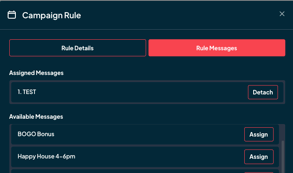
- In the popup window, click 'Rule Messages'. Any messages that are assigned to this Campaign Rule should show up under 'Assigned Messages'
- Any messages you have created or uploaded that are set to 'Active', but are not currently assigned to this Campaign Rule, will be under 'Available Messages'. Click 'Assign' to assign a message.
Is your Campaign Rule assigned to the correct player/location?
- Go to your Custom Channels dashboard.
- Click 'Audio Messaging', then click 'Campaigns'. Click 'Edit' on the Campaign where the message should be playing.
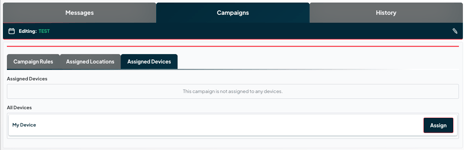
- Under 'Assigned Locations', confirm that the Campaign is assigned to the correct location. Any locations that are assigned to this Campaign should show up under 'Assigned Locations'.
- If your location(s) stream from a Custom Channels player, confirm that the player is listed under 'Assigned Devices'.
Is your Campaign programmed to play messages at the same location that is overlapping with an existing Campaign?
-
If you have more than one Campaign in use at a location (ex. one running legacy messages and one running a short-term promotion), you will want to make sure they are not running at the exact same interval, as any campaigns that are lower in priority may not run if they overlap with other campaigns
- You can change the priority of your existing Campaigns by clicking and dragging them on the 'Campaigns' page to move them higher or lower on the list. The number next to the campaign name also indicates their priority.
- Example: If you have a campaign set to play an audio message every 5 songs indefinitely, and also want to play a temporary promotional message every 5 songs, the one that is listed 1st on the 'Campaigns' page is the one that will play every 5 songs. To ensure that both messages play, edit the temporary message to play every 10 songs.
How do I check that my Messages are playing?
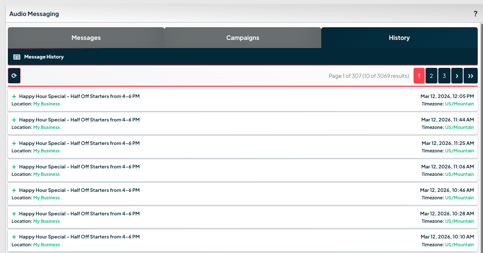
Within the 'Audio Messaging' page, the 'History' tab will show where your messages are currently playing by location and by time zone.